
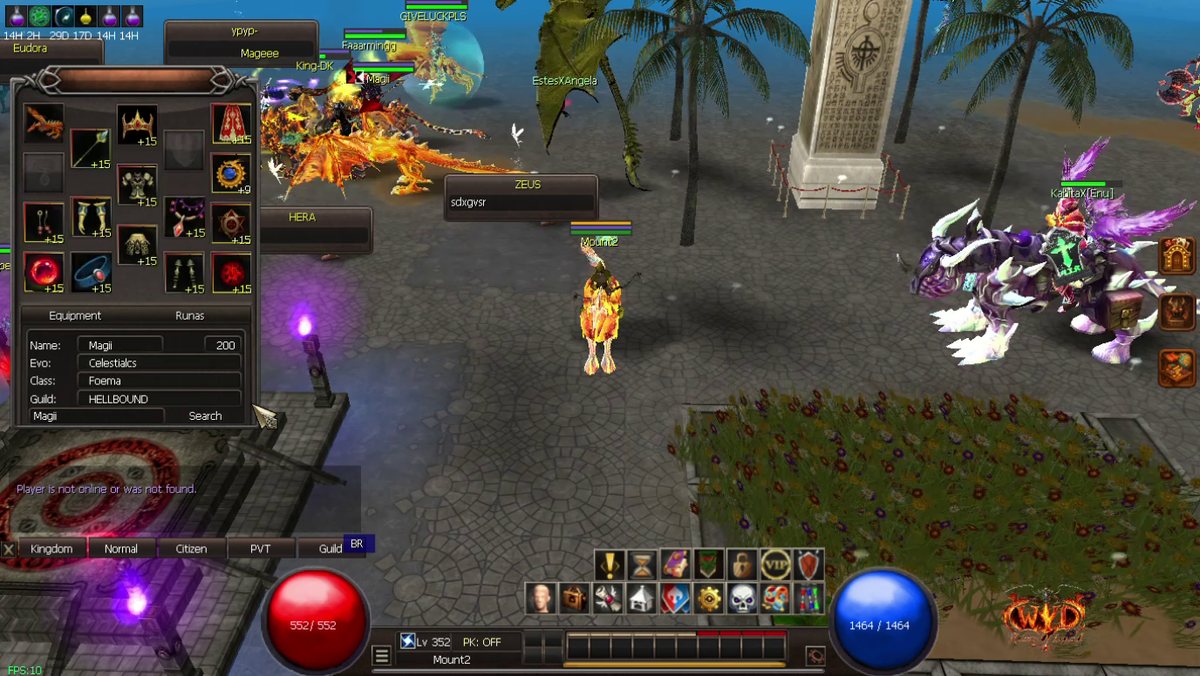
What it does
Look up any player who is online: their gear, their rune slots, their level, evolution, class and guild.
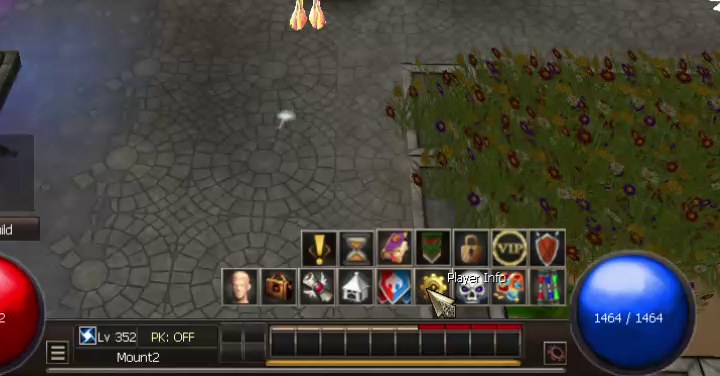
Step 1: Open Player Info
Click the gear icon (Player Info) in the main menu, above your skill bar.
Step 2: Search a player
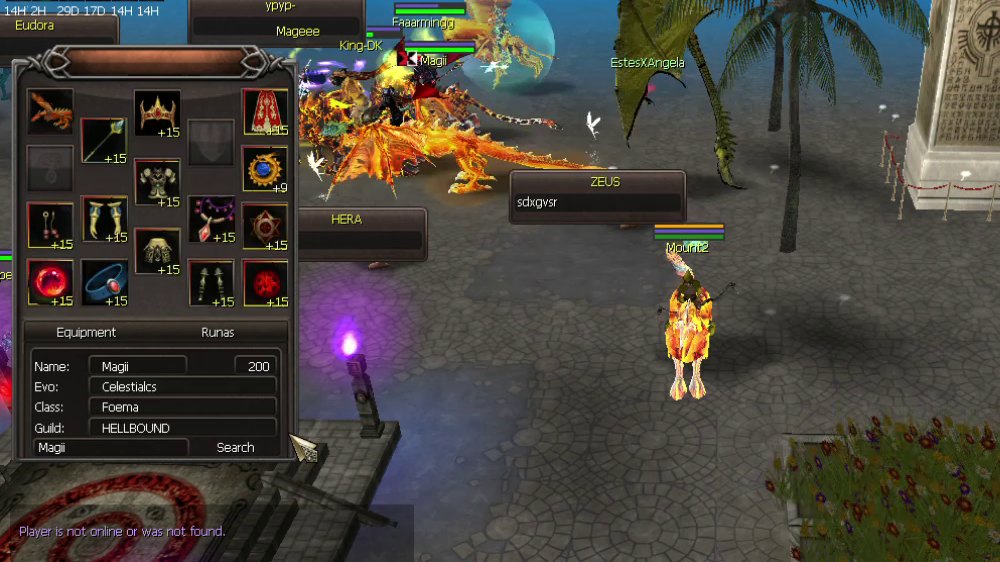
Type the character name in the box at the bottom and click Search.
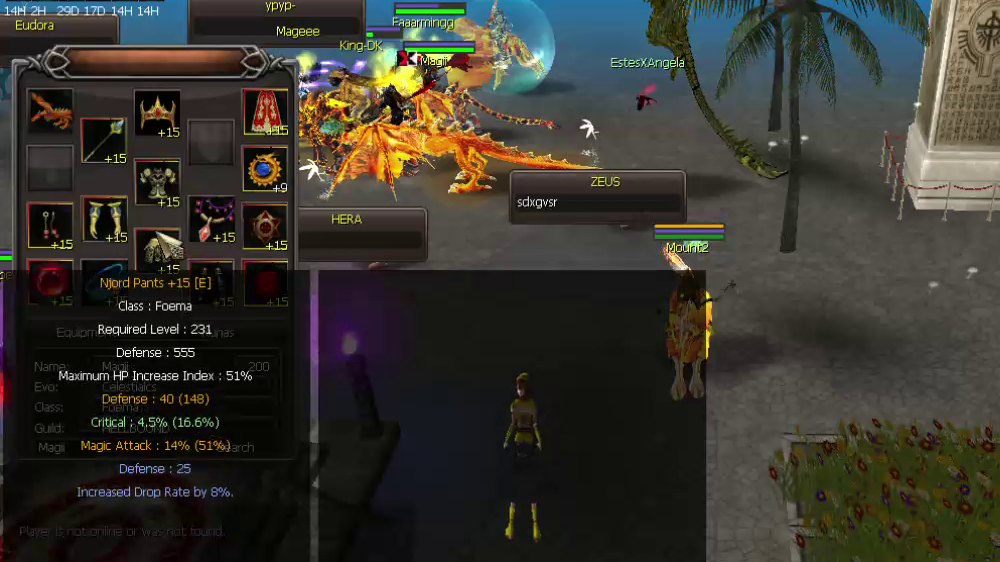
- The Equipment tab shows all the gear the player wears, with the refine level (+15, +9 ...).
- Below you see Name, level, Evo, Class and Guild.
- If the player is offline or the name is wrong, the game says "Player is not online or was not found."
Step 3: Check an item
Put your mouse on an item to see its full stats, the same as in your own inventory.
Step 4: See the runes
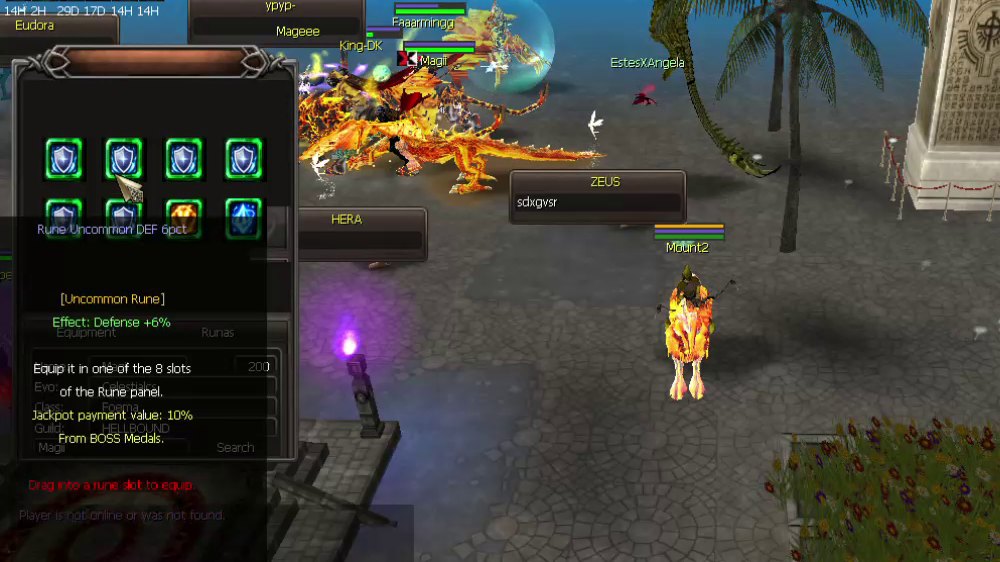
Click the Runas tab to see the player's 8 rune slots. Put your mouse on a rune to see what it gives.
Moving clip